Gzip Compression Test: How to Check If Gzip Is Enabled on Your Site
Learn how to check if gzip compression is enabled on your website using a free online gzip test, browser dev tools, or cURL, plus how to enable it for faster load times.
Gzip CompressionHow to Check If Gzip Compression Is Enabled on Your Website
Page speed matters to your visitors and to your search rankings. One of the simplest ways to make pages load faster is gzip compression, a server setting that can shrink your HTML, CSS, and JavaScript files by 70% or more before they are sent to the browser. Many site owners assume it is already switched on, and many of them are wrong. This guide explains what gzip compression is, why it matters for SEO, and how to check whether your website uses it, including a quick method using the free Gzip Compression Test tool from SEO Toolbox.
What Is Gzip Compression?
Gzip is a file compression method that web servers use to reduce the size of files before sending them to a visitor's browser. When a browser requests a page, it tells the server which compression formats it supports through the Accept-Encoding header. If gzip is enabled, the server compresses the response, and the browser decompresses it almost instantly on arrival.
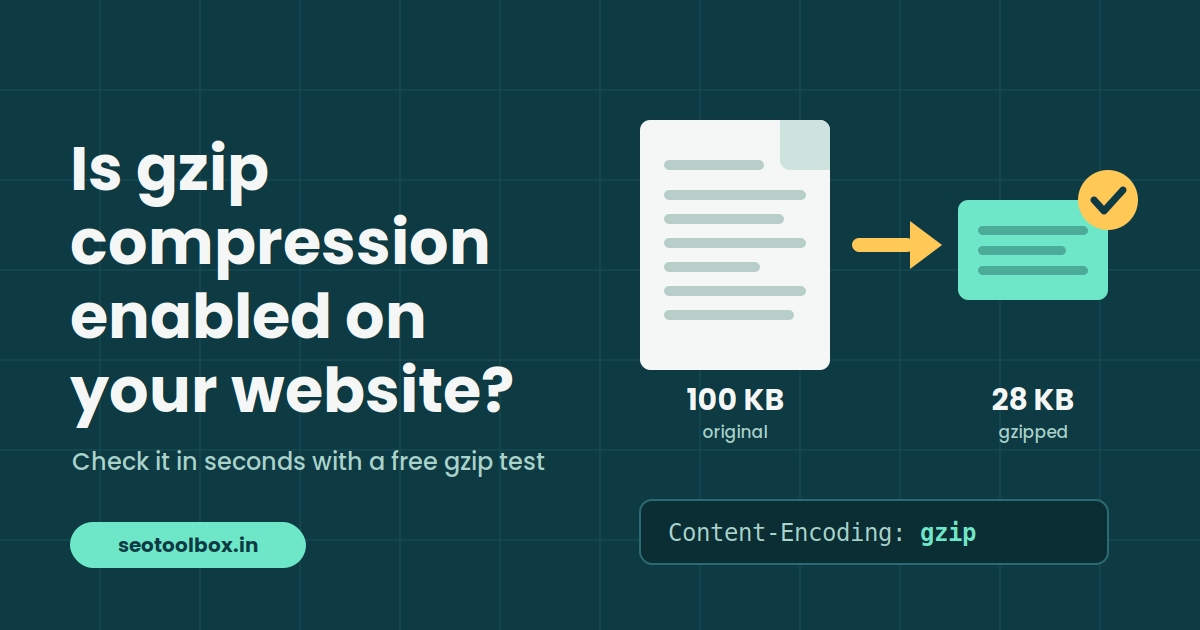
Text-based files benefit the most because they contain a lot of repeated patterns. A 100 KB HTML file might travel over the network at around 20 to 30 KB once gzipped. Images such as JPEG, PNG, and WebP are already compressed, so gzip adds little value for them.
Why Gzip Compression Matters for SEO
Google uses page experience signals, including Core Web Vitals, as part of its ranking systems. Smaller files mean faster downloads, which helps metrics such as Largest Contentful Paint (LCP) and overall page load time. This is especially important for visitors on mobile networks, where every kilobyte counts.
Gzip also reduces bandwidth use on your server, which can lower hosting costs and help your site handle traffic spikes. Tools like Google PageSpeed Insights and Lighthouse will flag missing text compression as an opportunity, so fixing it is often one of the easiest wins in a technical SEO audit. Before you work on anything else, it is worth running your homepage through the SEO Toolbox Gzip Test to confirm where you stand.
Method 1: Use an Online Gzip Test Tool (Easiest)
The quickest way to check compression is with an online checker, because it requires no technical knowledge or software.
Enter the full URL of the page you want to check, for example https://www.yourwebsite.com.
Run the test.
Review the result. The tool will tell you whether gzip is enabled and, typically, how the compressed size compares with the original size so you can see how much data you are saving.
Test more than just your homepage. Check a blog post, a category page, and a product page too, since different sections of a site can be served by different rules or plugins. SEO Toolbox also offers a range of other free SEO utilities you can use alongside the gzip checker when auditing your site.
Method 2: Check with Browser Developer Tools
If you prefer to see the raw data yourself, every modern browser can show you the response headers.
Open your website in Chrome, Edge, or Firefox.
Right-click anywhere on the page and choose Inspect, or press F12.
Open the Network tab and reload the page.
Click the main document request (usually the first entry, named after your domain or page).
Under Response Headers, look for Content-Encoding.
If you see Content-Encoding: gzip, compression is working. If you see br, your server is using Brotli, a newer and often more efficient compression method, which is also good news. If the header is missing entirely, the file is being sent uncompressed. You can cross-check your findings with the online gzip checker to be sure.
Method 3: Use the Command Line with cURL
Developers can test compression in seconds from a terminal:
The -I flag returns only the headers. Look for content-encoding: gzip in the output. If it is absent, the server did not compress the response even though the request said gzip was acceptable.
How to Enable Gzip Compression If It Is Off
If your test shows gzip is disabled, the fix depends on your server or platform.
Apache: Add the following to your .htaccess file, provided mod_deflate is enabled:
WordPress: Caching plugins such as WP Rocket, W3 Total Cache, or LiteSpeed Cache usually include a compression option. Many managed hosts enable it at the server level by default.
CDN users: Services like Cloudflare typically compress text files automatically at the edge, so check your CDN dashboard before changing server files.
After making changes, clear any caches and run the SEO Toolbox Gzip Test again to confirm the fix is live.
Common Mistakes to Avoid
A few issues come up again and again. Some sites compress HTML but forget CSS and JavaScript, so test those file URLs individually. Others try to gzip images and PDFs, which wastes server CPU for almost no benefit. Setting the compression level to the maximum (9) rarely helps much and slows the server down; a level between 4 and 6 is a sensible balance. Finally, caching layers can serve stale uncompressed versions after you make a change, so always purge the cache before retesting.
Frequently Asked Questions
Is gzip compression still relevant in 2026? Yes. Brotli is increasingly common and often compresses slightly better, but gzip remains universally supported and is a reliable fallback. Either one is far better than no compression.
Does gzip compression affect how Google crawls my site? Googlebot supports gzip, and compressed responses mean faster crawling and less load on your server.
How often should I check gzip compression? Recheck after server migrations, hosting changes, CDN updates, or major plugin changes. A quick scan with the free gzip checker takes only seconds.
Conclusion
Gzip compression is one of the easiest performance improvements you can make, and checking it takes less than a minute. Test your pages with the SEO Toolbox Gzip Compression Test, confirm the result in your browser's developer tools if you like, and enable compression on your server if it is missing. Faster pages lead to happier visitors and give your site a stronger foundation for SEO. For more free tools to improve your site's technical health, explore SEO Toolbox.
One note: the tool page blocked automated access, so I described the gzip test steps in general terms; it's worth checking that "Method 1" matches what the tool actually displays. I can also turn this into a doc or add a meta title and description if you'd like.
Contact
Missing something?
Feel free to request missing tools or give some feedback using our contact form.